Version 7.0
Saved Boards, dark mode, contrasted mode and graphic window settings
August 05, 2026
Save and share Boards
We're glad to announce that you can now save your work and share it to anyone!
First, you can log in to your NumWorks account by clicking on the silhouette in a circle.
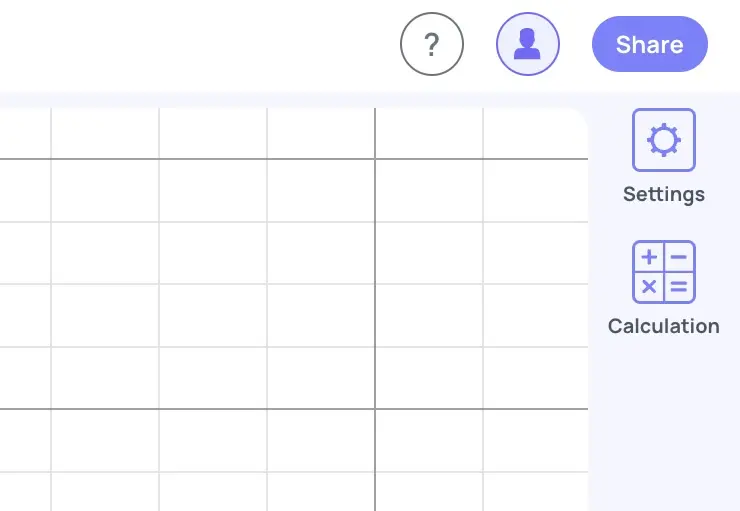
Work as usual on the Board, and to save it, you can click on the save icon.
Additionally you'll see the name of the saved Board, you can click to edit your saved Board name. To the right of the name of your saved Board you can access a menu of options including starting a New Board, Rename, Save, Duplicate, Share and Delete.
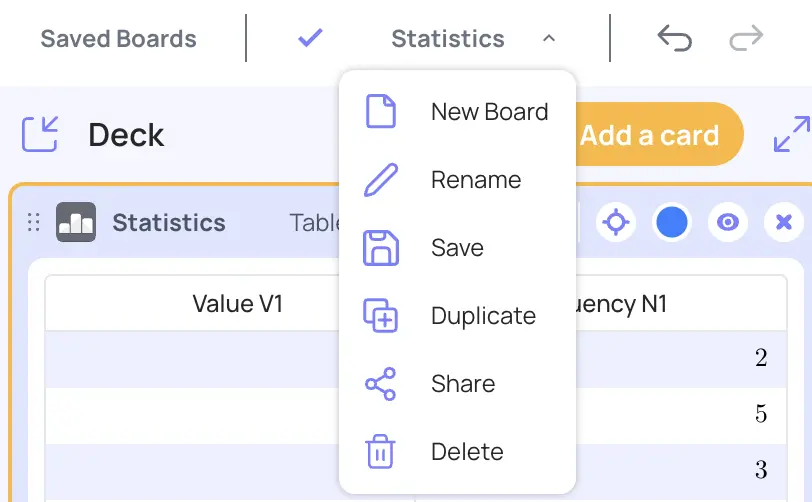
Click Saved Boards to access and manage your saved work. You can save up to 5 Boards at a time.
Once saved, you'll see a check mark indicating the work has been saved. Changes made after saving are not recorded unless you click the save icon again.
Dark and contrasted modes
To give you the best and most comfortable experience, we’ve added Dark Mode and High-Contrast Mode.
Whether you prefer dark visuals, maximum contrast, or a combination of both, you can tailor the board to match your style and needs.
Graphic window new settings
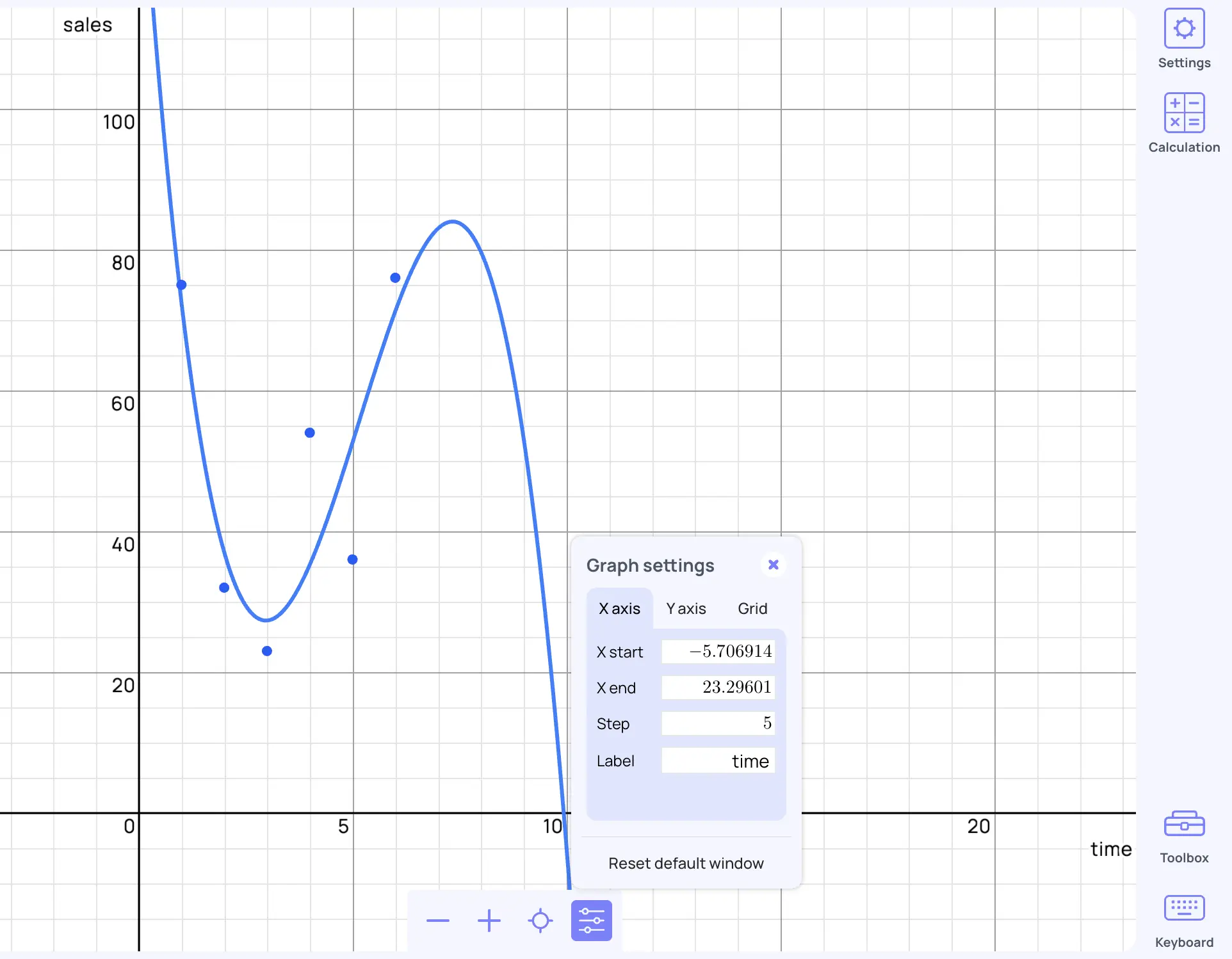
We’ve upgraded our graph settings to give you more control over your window layout. You can now customize your axes with a step and a label.
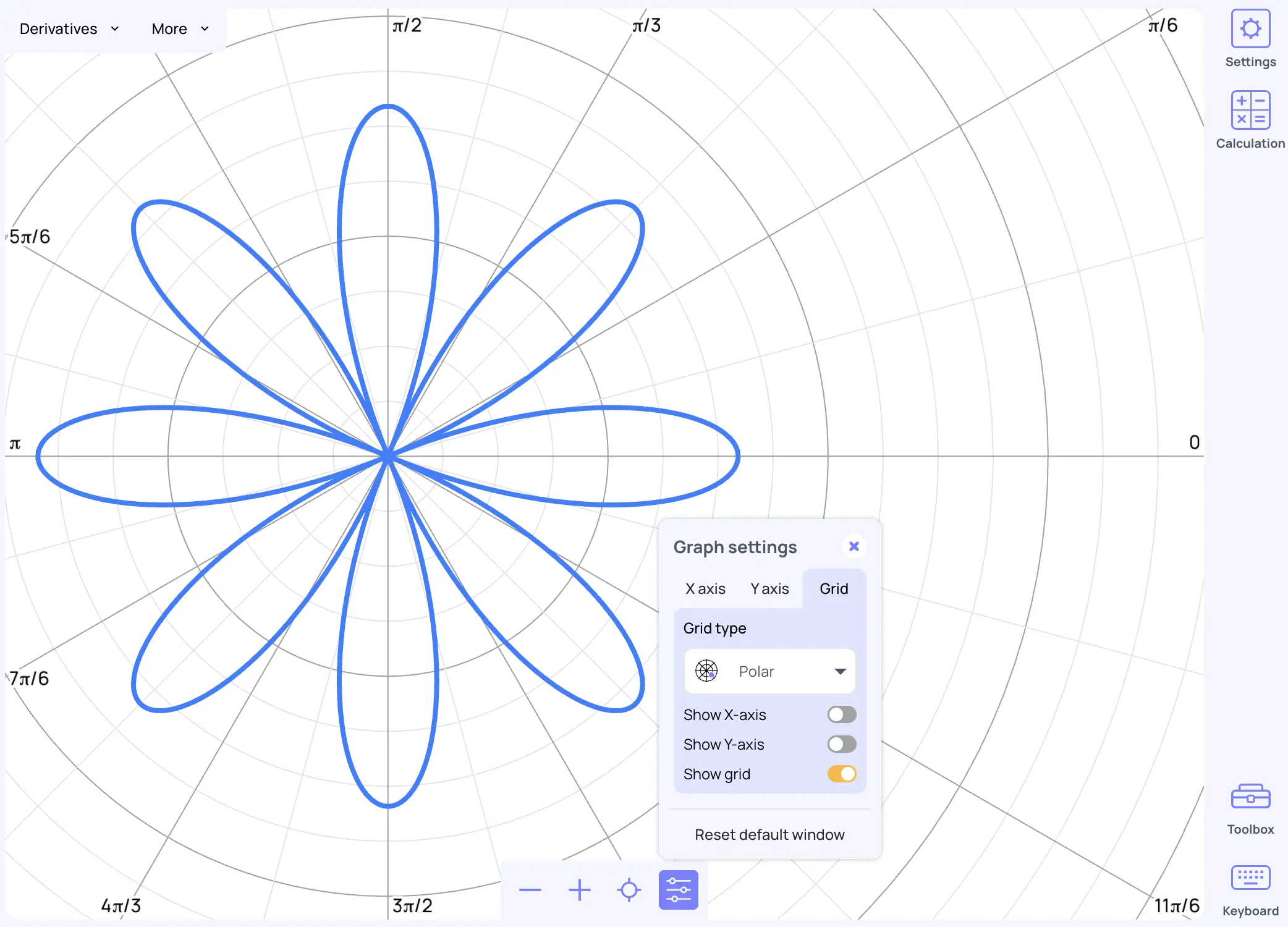
We've also added a Grid section to the widow settings. on this tab you can now select a Polar grid, as well as toggle on and off the axes and grid.
Clearer discrete distributions
We’ve widened discrete distribution graphs so your data is much easier to read at a glance.
Our sliders now give you instant visual feedback: the left side lights up when adjusting the lower bound, and the right side lights up for the upper bound.
Optimized display for any screen
Your workspace now adapts automatically! Whether you’re working on an iPad or projecting onto a Promethean board, the display scales perfectly to match your screen size. Need to adjust it further? Simply adjust your view using your browser zoom or keyboard shortcuts (Cmd +/- on Mac, Ctrl +/- on Windows).